
【VPS面板】哪吒面板安装
哪吒面板安装过程
用到的项目:https://nezha.wiki/
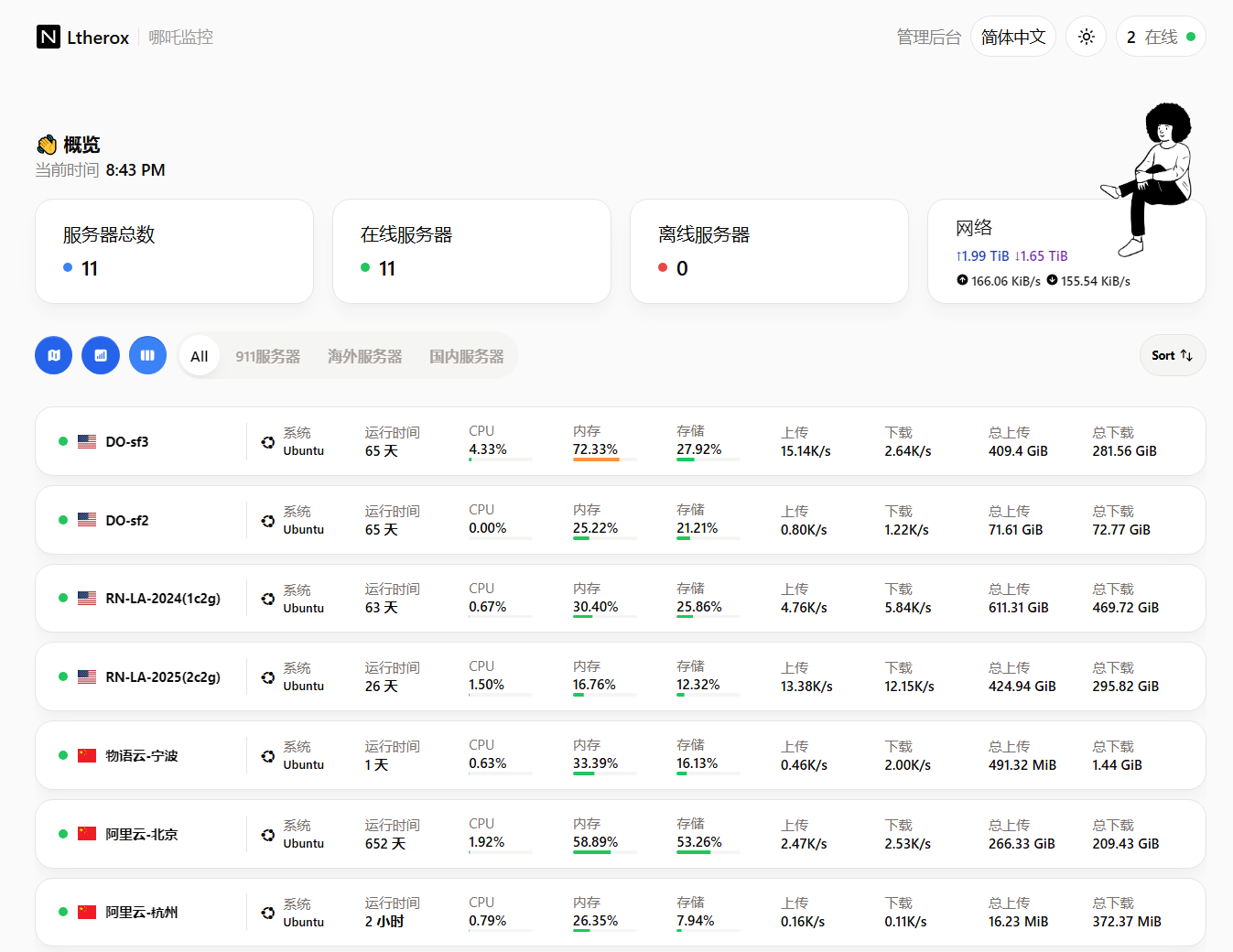
写在前面
安装分两个部分(控制端dashboard,被控端agent)
其中控制端的软件安装在一台机器A上即可,被控制端的设备(B,C,D)向A定期发送数据
在控制端中安装Dashboard
在面板服务器中,运行以下安装脚本:
curl -L https://raw.githubusercontent.com/nezhahq/scripts/refs/heads/main/install.sh -o nezha.sh && chmod +x nezha.sh && sudo ./nezha.sh如果你的服务器位于中国大陆,可以使用镜像:
curl -L https://gitee.com/naibahq/scripts/raw/main/install.sh -o nezha.sh && chmod +x nezha.sh && sudo CN=true ./nezha.sh以 Docker 安装为例,安装完成后按提示输入以下信息:
请输入站点标题:- 自定义站点标题。请输入暴露端口:- 公开访问端口(默认 8008,可自定义)请指定安装命令中预设的 nezha-agent 通信域名地址(例如 example.com:443)- 这里不要写8008了,使用
域名:444即可,如dash.lthero.top:444
- 这里不要写8008了,使用
输入完成后,等待拉取 Docker 镜像
安装结束后,如果一切正常,你可以通过域名和端口号访问 Dashboard,例如:
http://dash.example.com:8008
如果需要再次运行安装脚本,可输入以下命令:
./nezha.sh打开管理脚本
登录到 Dashboard 配置界面
后台管理界面的路径为 /dashboard,你只需访问:
http://dash.example.com:8008/dashboard
首次登录的默认用户名和密码均为 admin
建议安装后立即进入管理页面:点击头像 → “个人信息” → “更新个人资料”修改密码。
HTTPS安装
脚本下载
wget https://raw.githubusercontent.com/lthero-big/QcHTTPS/refs/heads/main/install_https.sh -O install_https.sh 脚本将保存在本地 ,install_https.sh ,您可以随时执行
脚本执行
bash install_https.sh随后输入
- 域名,如
dash.lthero.top - 端口,
8008 - 邮箱,自己的
然后等证书下来后
修改这个配置文件vim /etc/nginx/sites-available/dash.lthero.top
Nginx 配置示例
如果你没有使用CloudFlare的服务,下面的代码默认为“你使用nginx作为最外层”,需要按下面的注释,删除(注释掉)一些代码
以下是使用 Nginx 配置反向代理的示例:
server {
    listen 443 ssl http2;
    listen [::]:443 ssl http2;
    # http2 on; # Nginx > 1.25.1,请注释上面两行,启用此行

    server_name dashboard.example.com; # 替换为你的域名
    ssl_certificate          /data/letsencrypt/fullchain.pem; # 域名证书路径
    ssl_certificate_key      /data/letsencrypt/key.pem;       # 域名私钥路径
    ssl_stapling on;
    ssl_session_timeout 1d;
    ssl_session_cache shared:SSL:10m; # 如果与其他配置冲突,请注释此项
    ssl_protocols TLSv1.2 TLSv1.3;

    underscores_in_headers on;
    set_real_ip_from 0.0.0.0/0; # 替换为你的 CDN 回源 IP 地址段
    real_ip_header CF-Connecting-IP; # 替换为你的 CDN 提供的私有 header,此处为 CloudFlare 默认
    # 如果你使用nginx作为最外层,把上面两行注释掉

    # grpc 相关
    location ^~ /proto.NezhaService/ {
        grpc_set_header Host $host;
        grpc_set_header nz-realip $http_CF_Connecting_IP; # 替换为你的 CDN 提供的私有 header,此处为 CloudFlare 默认
        # grpc_set_header nz-realip $remote_addr; # 如果你使用nginx作为最外层,就把上面一行注释掉,启用此行
        grpc_read_timeout 600s;
        grpc_send_timeout 600s;
        grpc_socket_keepalive on;
        client_max_body_size 10m;
        grpc_buffer_size 4m;
        grpc_pass grpc://dashboard;
    }
    # websocket 相关
    location ~* ^/api/v1/ws/(server|terminal|file)(.*)$ {
        proxy_set_header Host $host;
        proxy_set_header nz-realip $http_cf_connecting_ip; # 替换为你的 CDN 提供的私有 header,此处为 CloudFlare 默认
        # proxy_set_header nz-realip $remote_addr; # 如果你使用nginx作为最外层,就把上面一行注释掉,启用此行
        proxy_set_header Origin https://$host;
        proxy_set_header Upgrade $http_upgrade;
        proxy_set_header Connection "upgrade";
        proxy_read_timeout 3600s;
        proxy_send_timeout 3600s;
        proxy_pass http://127.0.0.1:8008;
    }
    # web
    location / {
        proxy_set_header Host $host;
        proxy_set_header nz-realip $http_cf_connecting_ip; # 替换为你的 CDN 提供的私有 header,此处为 CloudFlare 默认
        # proxy_set_header nz-realip $remote_addr; # 如果你使用nginx作为最外层,就把上面一行注释掉,启用此行
        proxy_read_timeout 3600s;
        proxy_send_timeout 3600s;
        proxy_buffer_size 128k;
        proxy_buffers 4 256k;
        proxy_busy_buffers_size 256k;
        proxy_max_temp_file_size 0;
        proxy_pass http://127.0.0.1:8008;
    }
}

upstream dashboard {
    server 127.0.0.1:8008;
    keepalive 512;
}

server {
    listen 80;
    server_name dash.lthero.top;
    return 301 https://$server_name$request_uri;  # 强制重定向所有 HTTP 请求到 HTTPS
}下面是我的设置
server {
    listen 443 ssl http2;
    listen [::]:443 ssl http2;
    server_name dash.lthero.top; # 替换为你的域名
    ssl_certificate          /etc/letsencrypt/live/dash.lthero.top/fullchain.pem; # 域名证书路径
    ssl_certificate_key      /etc/letsencrypt/live/dash.lthero.top/privkey.pem; # 域名私钥路径
    ssl_stapling on;
    ssl_session_timeout 1d;
    ssl_session_cache shared:SSL:10m; #
    ssl_protocols TLSv1.2 TLSv1.3;
    underscores_in_headers on;

    # grpc 相关
    location ^~ /proto.NezhaService/ {
        grpc_set_header Host $host;
        grpc_set_header nz-realip $remote_addr;
        grpc_read_timeout 600s;
        grpc_send_timeout 600s;
        grpc_socket_keepalive on;
        client_max_body_size 10m;
        grpc_buffer_size 4m;
        grpc_pass grpc://dashboard;
    }
    # websocket 相关
    location ~* ^/api/v1/ws/(server|terminal|file)(.*)$ {
        proxy_set_header Host $host;
        proxy_set_header nz-realip $remote_addr;
        proxy_set_header Origin https://$host;
        proxy_set_header Upgrade $http_upgrade;
        proxy_set_header Connection "upgrade";
        proxy_read_timeout 3600s;
        proxy_send_timeout 3600s;
        proxy_pass http://127.0.0.1:8008;
    }
    # web
    location / {
        proxy_set_header Host $host;
        proxy_set_header nz-realip $remote_addr;
        proxy_read_timeout 3600s;
        proxy_send_timeout 3600s;
        proxy_buffer_size 128k;
        proxy_buffers 4 256k;
        proxy_busy_buffers_size 256k;
        proxy_max_temp_file_size 0;
        proxy_pass http://127.0.0.1:8008;
    }
}

upstream dashboard {
    server 127.0.0.1:8008; # 8008服务端口
    keepalive 512;
}

server {
    listen 80;
    server_name dash.lthero.top;
    return 301 https://$server_name$request_uri;  # 强制重定向所有 HTTP 请求到 HTTPS
}最后,重启nginx即可
sudo nginx -t  # 检查配置文件是否有语法错误
sudo systemctl reload nginx  # 重新加载配置
# 如果重新加载配置后无效,可以尝试重启nginx
sudo systemctl restart nginx在被控端安装agent
哪吒监控支持在 Windows、macOS 和 Linux 上一键安装 Agent
准备工作
在安装前,需要提前在管理面板中设置通信域名,该域名不建议接入 CDN。
本文档以示例通信域名 “dash.example.com:444” 为例
- 在后台管理面板点击头像,进入“系统设置”页。
- 在“Agent对接地址【域名/IP:端口】”项中填入通信域名和端口 “dash.example.com:444”
- 不要用8008了,换个端口就行
- 点击“确认”保存设置
一键安装步骤
- 在
服务器页面中,点击安装命令并选择对应操作系统,安装命令将自动复制到你的剪贴板。 - 在被控端服务器中运行安装命令,等待安装完成后返回到
服务器页面查看是否上线。 - 如果安装成功,页面中将自动弹出新的服务器,你可以点击编辑按钮为其设置名称。
查看 Agent 运行日志
在配置文件中启用 debug 模式,使用以下命令查看 Agent 的运行状态和日志:
systemctl status nezha-agent-*如果出现多个运行结果,说明你运行了多次agent
/opt/nezha/agent/ 下面有多少个config*.json就对应了相应的配置个数卸载 Agent
卸载 Agent 包括停止服务、卸载服务,以及删除相关文件。以下是 Ubuntu 系统的卸载步骤:
- 停止并卸载服务:
/opt/nezha/agent/nezha-agent service uninstall- 删除 Agent 文件夹:
rm -rf /opt/nezha/agent/如果安装了多个服务并想要全部卸载,可以使用 Agent 安装脚本的卸载功能:
./agent.sh uninstall数据迁移、备份恢复
新、旧服务器要使用相同的域名以及端口,保证无缝过渡
- 停止面板服务
在旧服务器中运行一键脚本,选择停止面板。 - 备份数据
打包旧服务器中的/opt/nezha文件夹,并将其复制到新服务器相同位置。 - 恢复数据
在新服务器中解压/opt/nezha文件夹至相同路径。 - 启动面板服务
在新服务器中运行一键脚本,选择启动面板。
注意事项
- 确保
/opt/nezha文件夹及其内容的权限和所有权在新服务器上正确设置。 - 数据迁移完成后,可以通过访问 Dashboard 界面验证迁移是否成功。
- 文章作者:
- Lthero博客
- 版权声明:
- 本博客所有文章除特别声明外,均采用CC BY-NC-SA 4.0许可协议。转载请注明来自 Lthero博客!


